
Choose the Linux package
Official Linux packages target x86_64. On Debian or Ubuntu, download the .deb from the official release and open it with the system package installer.
For the portable .tar.gz, extract the archive into a folder you intend to keep. Open a terminal in the extracted folder and run the launch script below. Both package types require system GTK and WebKitGTK 4.1 libraries; the portable archive is not a self-contained runtime.
To add the portable installation to the application menu and create a desktop shortcut, run ./scripts/install-desktop.sh from that same folder. The shortcut is named Markwrite. Keep the extracted folder in place because the launcher points to it.
./scripts/launch.shMake Markwrite the default for Markdown
The association targets Markdown file types. It does not replace the default application for ordinary .txt files. Linux file-manager settings vary between desktop environments.
- Launch the installed desktop application and open Settings with Ctrl+, or from the application menu.
- Select Files on the left. Under Default application, click Set as default.
- Use Refresh status to confirm the association. Then double-click an .md or .markdown file in your file manager.
- If the system has not confirmed the association, use its default-application or Open With controls to select Markwrite, then return and refresh the status.
Read the original file and its relative images
The default opening mode is configurable under Settings → Editor. The shortcuts above are the defaults and can be changed under Settings → Shortcuts.
Relative image paths are resolved from the document location, including Chinese names and spaces within permitted locations. When sending the document to another computer, include its image files and preserve their relative folders, or use the document-and-attachments ZIP export.
- Double-click a file after setting the association, or use File → Open in Markwrite. No library import is required.
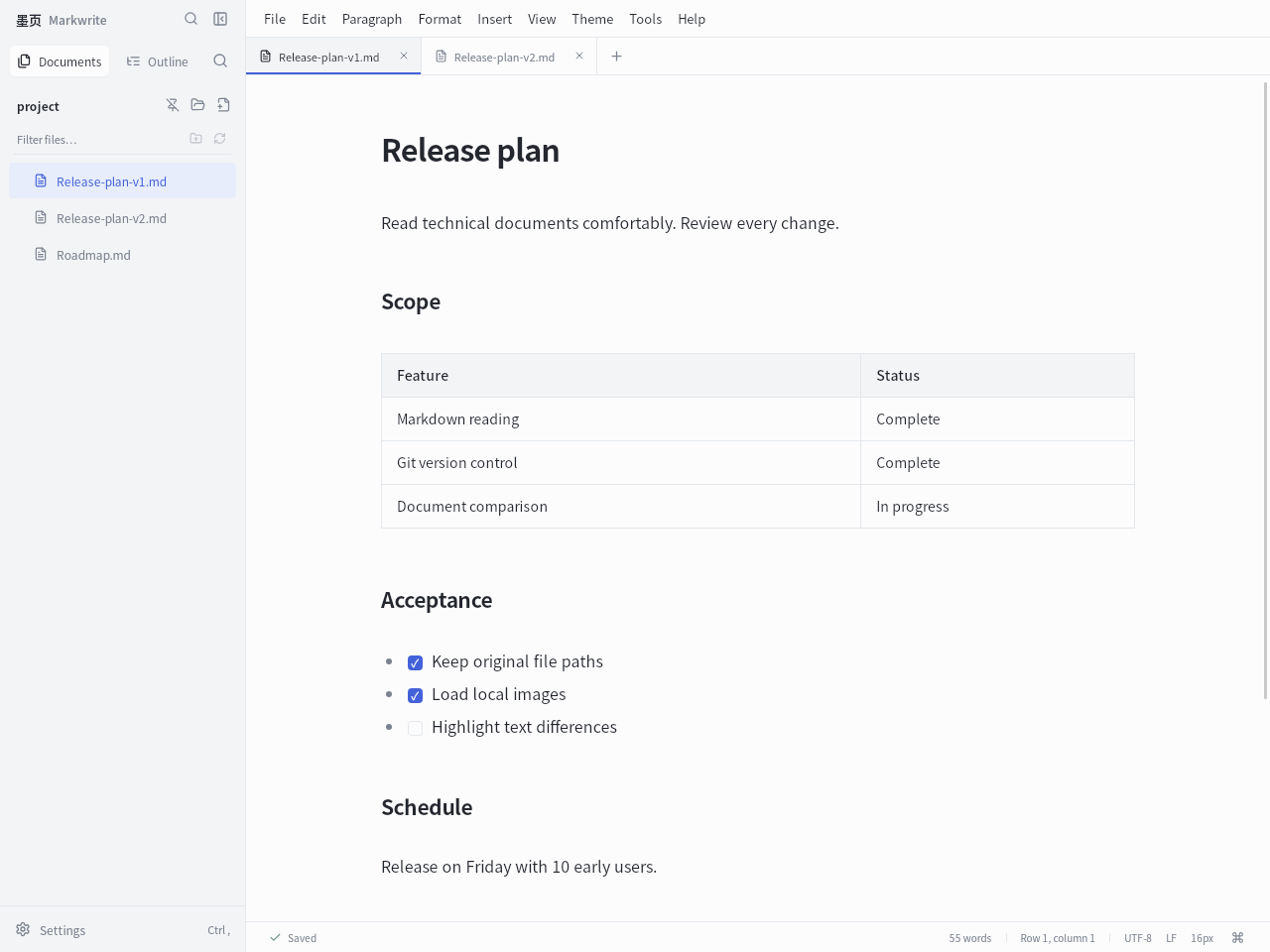
- Read the rendered document. The file tree can follow its parent folder, while the Markdown file and existing images remain at their original paths.
- Use Ctrl+F to find text in the current document. If editing is needed, use Ctrl+1 for editing or Ctrl+2 for source; Ctrl+3 returns to reading.
Understand startup, saving and offline use
An ordinary launch does not reopen previous documents or folders. Double-clicking a file when the application is closed opens that file; subsequent opens during the same running session add document tabs.
Reading mode does not edit the source. After editing, saving or automatic saving can write changes to disk. Discarding unsaved changes on exit cannot undo an earlier save.
Local reading and editing need no account. Optional AI, remote images, publishing and update checks use the network when those features are used.
The per-file limit is 32 MiB. Startup and scrolling depend on the machine, runtime and document; sub-second startup is not guaranteed. Linux runtime dependencies must be available even for the portable package.