Capture. Annotate. Share.
Add arrows, rectangles, freehand marks or solid covers. Click text to edit it again. Copy and save from the selection toolbar.
 Shiguang
Capture
Shiguang
Capture
A moment on screen. Ready for what comes next.
Annotate a screenshot. Record the whole process.
Turn an image into editable text, right on your computer.
Windows · macOS · Linux / Free & open source · No account
Fewer interruptions
Annotate right inside your selection. Open the side-by-side workbench when you need to extract text.
Add arrows, rectangles, freehand marks or solid covers. Click text to edit it again. Copy and save from the selection toolbar.
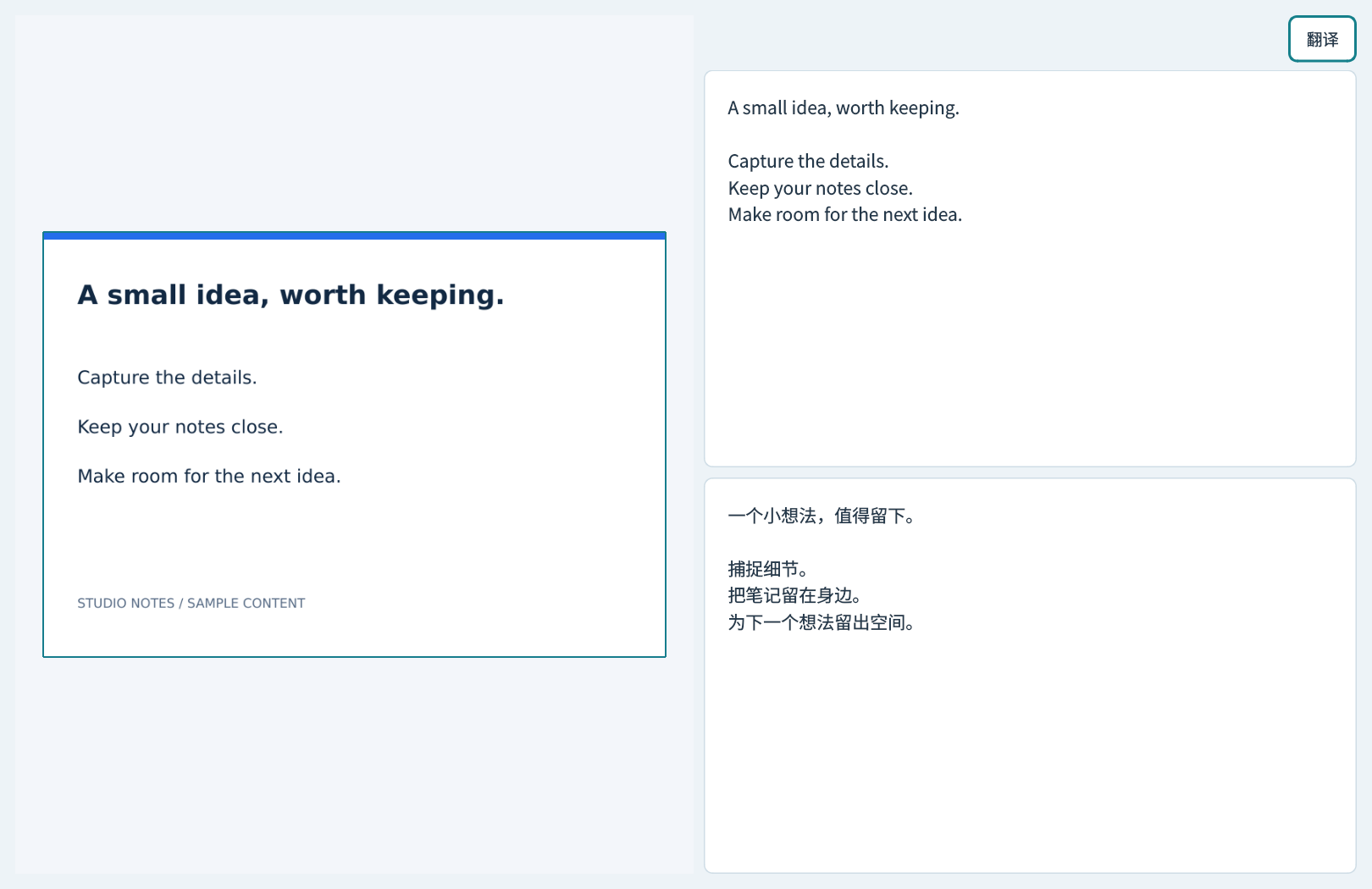
Extract Chinese and English text, visible code or simple tables offline. Check the image beside the result, then translate into a comparison pane.
Customize capture, color picker, pin and recording shortcuts. Open settings, press your preferred combination, and save.
OCR and Chinese–English translation run on your computer. Models are bundled. Screenshots copy by default; saving and exporting are explicit actions.
Less in the way
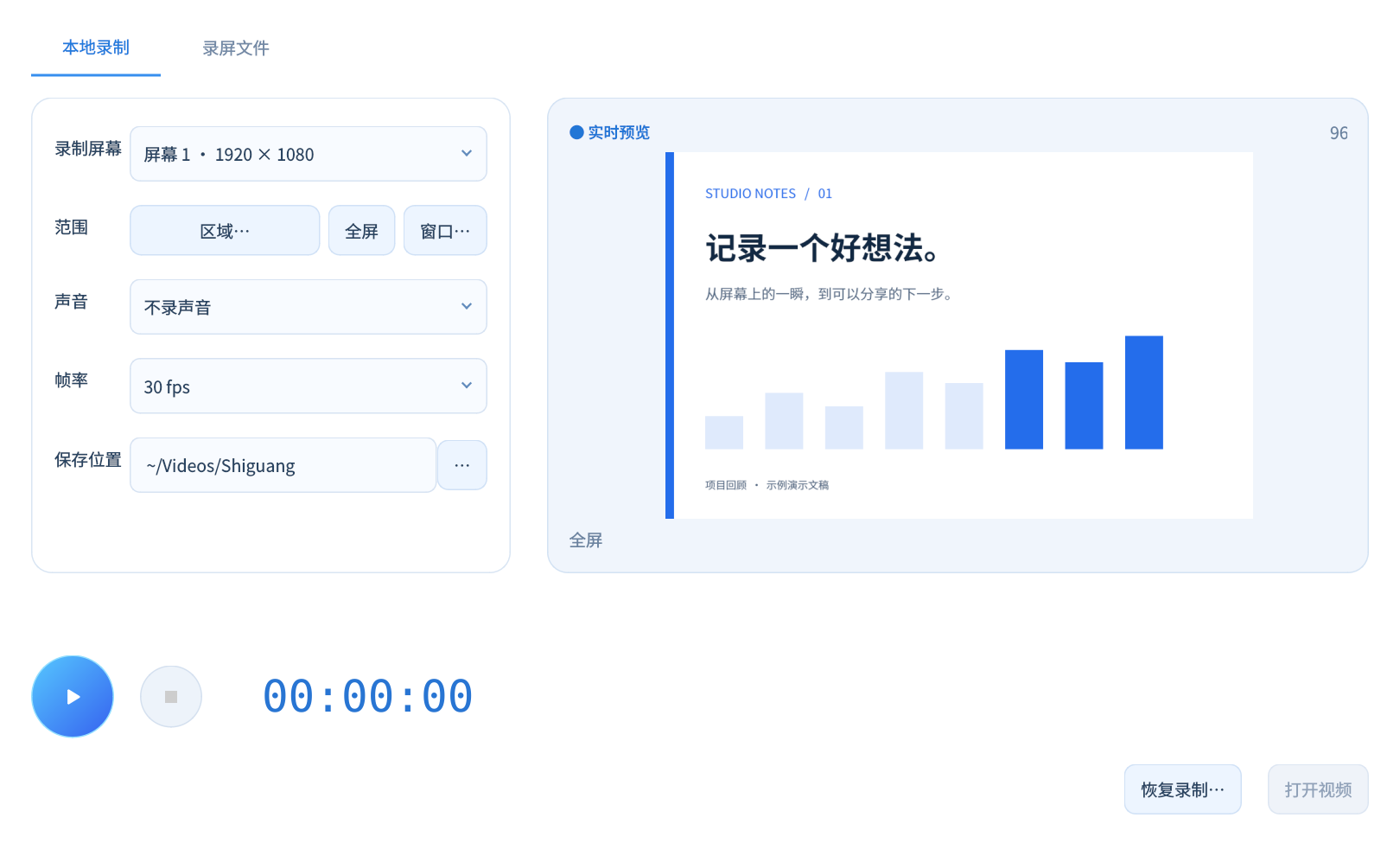
Choose a screen, region or window. A three-second countdown gets you ready. Expand the floating control to resume, pause or stop; drag it to an edge to tuck it into a blue semicircle.
The recordings page lists file sizes and dates, with actions to play, delete or reveal a file in its folder.

SHIGUANG CAPTURE / v1.4.3
Choose your platform. Packages include OCR and Chinese–English translation models.
Extract and run ShiguangCapture.exe
Download .zipApple Silicon · Move the app to Applications
Download .tar.gzX11 · Extract and run install-linux.sh
Download .tar.gzThis website is bilingual. The application interface is currently primarily in Chinese.
Yes. Released packages include OCR and Chinese–English translation models. No account or extra model download is required. The website demo uses sample content.
No. Annotate, copy, save or pin directly from the selection. The workbench opens for text, code or table recognition.
The current scope is fully bordered, unmerged tables up to 30 rows × 12 columns. Complex tables are unsupported, scrolling capture is experimental, and recognition results need review.
Open the Shortcuts tab in settings, click an input, press a new combination and save. Defaults: F1 for capture, F6 for recording or pause/resume, F7 to stop and save.
Closing a window leaves the app in the tray so shortcuts remain available. Use the tray menu to quit completely.